

What do I need to participate in SWLT?
SWLT.ca (this website) is where we keep all of our articles, videos and audio files to learn how to find compatible homemates. You can access all of this website using any computer, tablet or smart phone and any browser.
You will need to be able to use a browser (the app on your device that displays web pages) and you need an email address to receive notifications from SWLT and other users.
Things will display differently on different devices and browser, so look around for the menu icon ( ≡ ) if you don't see a particular item. It's usually at the top right corner of your screen. There is search capability everywhere in the site also so click on SEARCH in the menu, and you can type in a word or phrase to show the places containing the information you need.
We maintain a connected Chat server that is restricted to our Members. While there is an app for that, you can also use it in any browser and have the same features as a computer user without being attached to any particular technology. Both services use the same login (username or email and password) so you only have one thing to remember.
As much as possible, our process is hosted on Canadian services, using open source projects rather than proprietary software and services, and we have ownership of all of our data. We do not share or sell our data (members, fundraising or mailing lists) with anyone.
For help with common issues, click on a title to open the help article
- Sign up/edit your profile
When you're ready to join us and look for homemates, you need to start by completing our profile questionnaire.
Video file- Add an image to your profile
You can add an image to your account when you're logged in by going to swlt.ca/user. Click on Edit, then scroll down to Picture, then Choose file to upload.
Video file- You see an Access Denied message instead of content
All of our subscriber content (profiles and chat) require you to be logged in.
If you see Access denied, then you are not logged in, or your account doesn't have the correct role (if you see Logout on the menu but still can't access content, contact web@swlt.ca to check your account).
Go to the menu at the top of the screen - if you see Logout, you are logged in. If you see Login you have to log in to see private content.
Image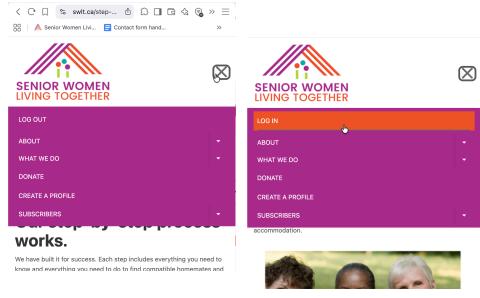
SWLT menu on small screens (tablets, phones). Log out left, Login right Image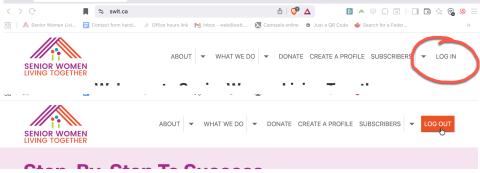
SWLT menu on larger (over 1000px) screens. Login top, Logout bottom. - Forgot your password?
If you don't know your password, it can be reset by email.
On the login screen, select Forgot password, and then enter your email address or username and click Submit.
In your email, find the reset message, and click on the link (it can only be used once).
On the website, click on the Login button. This will land you on your login user page. You will have to enter your Password twice, then scroll down and Save.
You're already logged in, so you can proceed to Subscriber resources or chat.
Video file- Searching through Profiles
Now you can start to look for other people who you might want to meet at https://swlt.ca/profile-search
Video file- Meeting online
We use Jitsi for our video meetings. You can access a meeting set up by someone else by clicking on the link they give you and proceeding in your browser, but some devices may benefit from using the app (on phones you have all of the same features, but the menus are optimized for the small screens).
Specific instructions may be different for different devices and browsers, but in general, you will click a link or type a URL like https://meet.jit.si/swlt-tech-support (the meeting room name will be different). When you get to the meeting screen, you will have to allow your microphone and video to be used and shared. You might want to test on your system if you've never used this before (just like any new software or service).
- Join us in chat
The place to chat with other users is in Discourse (chat.swlt.ca).
There's a button on most logged in pages, as well as a link under Subscribers in the menu and user profiles. Your chat account will be activated as soon as you click on any of these links.
Image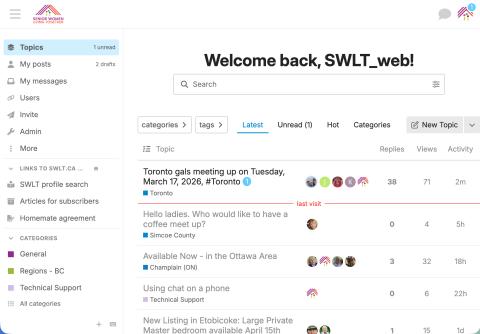
In chat, you can create and reply to Topics (discussions in categories that may be seen by all subscribers), Group chats (join open groups or invite others to a more private conversation), and DMs (direct messages between you and another person).
Note: If you find a profile that looks interesting, but can't find the username in chat, that means that person has not clicked on the link. Please send a DM to @swlt_web with the username you're looking for and we'll check it out.
You should set notification preferences to receive email when you're mentioned, or a topic you're following is updated. You may reply by email, but remember that just places your reply in the system -- it doesn't show you the context (what other people may be talking about).
Chat.swlt.ca uses Single Sign-On with our website, so now, when you have a profile on SWLT.ca, you automatically get an account on SWLT's Discourse as soon as you go to chat to activate. It uses the same username as your profile. To change your username, please contact Kathryn (@swlt_web in Discourse, web@swlt.ca by email).
We'll all be learning together, so talk to the women in your region's category, and ask questions and share tips in the Technical Support Category.
There are some video tutorials at /using-chatswltca
Getting help
If you need tech support, contact web@swlt.ca by email or @swlt_web in https://chat.swlt.ca to ask a question or arrange a video call.