You can head to our private chat (hosted on Discourse at https://chat.swlt.ca to check out activity in your region or an interest group, or to contact a person whose profile looks interesting.
It's restricted to subscribers and volunteers who are logged in on SWLT.ca, so it's reasonably safe, but remember that until you meet people we're all strangers on the internet, so you shouldn't share personal contact information until you're comfortable.
There's a button on most logged in pages, as well as a link called "Find other Members" under the For Members tab in the top menu. As well, there is a link to the chat at the bottom of each user profile. Your chat account will be activated as soon as you click on any of these links.
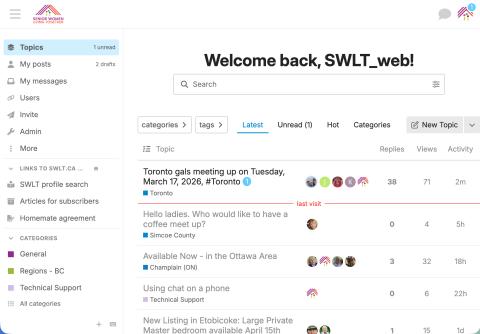
In chat, you can create and reply to Topics (discussions in categories that may be seen by all subscribers), use Group chats (join open groups or invite others to a more private conversation), and DMs (direct messages between you and another person).
Note: If you find a profile that looks interesting, but can't find the username in chat, that means that person has not clicked on the link. Please send a DM to @swlt_web with the username you're looking for and we'll check it out.
You should set notification preferences to receive email when you're mentioned, or a topic you're following is updated. You can also reply by email, but remember that places your reply in the system but it doesn't show you the context (what other people may be talking about aside from the message you reply to).
Chat.swlt.ca uses Single Sign-On with our website, so when you have a profile on SWLT.ca, you automatically get an account on SWLT's Discourse as soon as you go to chat to activate. It uses the same username as your profile. To change your username, please contact Kathryn (@swlt_web in Discourse, web@swlt.ca by email).
We'll all be learning together, so talk to the women in your region's category, and ask questions and share tips in the Technical Support Category. I'll post how-to documents here.
Click on a heading below to open a how-to.
- Finding topics, chat messages and more
Note - The formatting on the phone bit at the end was stretched out to fill the video size. It looks much better in real life on a small screen.
- Getting email notifications about messages in Discourse
- Video file
- Adding a video meeting to a discussion
To create a meeting:
- click on the camera icon in a message
- you can create a custom meeting ID - E.G. swlt-tech-support or just let Jitsi make a random ID
- then click insert to see a code block in your message
- Add a date and time if you’re not meeting right away
- When it’s time for your meeting, just click the link
You can also start a meeting by copying the link to your browser screen.
Then post your message or reply.
Image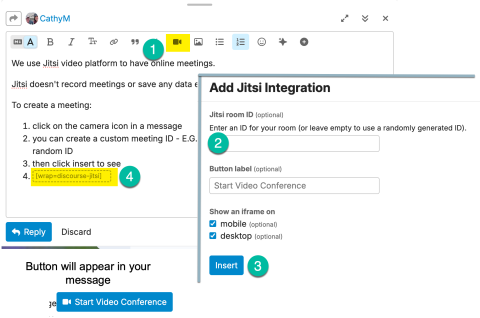
- Topic too long to read?
If there's a topic that has many replies and you want to get an overview, rather than reading the whole thing you can see an AI Summary.
Image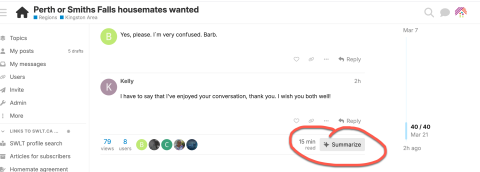
The summary generated will be saved with the conversation so it can be viewed by others.
- Have a private chat with an individual or group
You can have a chat with another user in real time or asynchronously by scrolling down the menu to DMS.
Image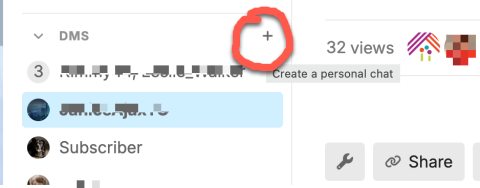
Click on the + to search for a user, or select New group chat to add up to 20 users.
Image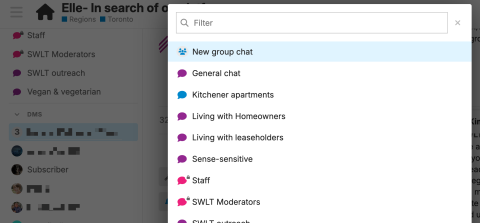
You can also start a chat from a person's account
Image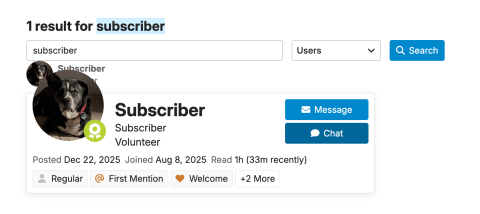
- Using Living with Homeowner listings
If you're interested in finding a homeowner to live with, current available homeowners are in their own category (when a homeowner signs up, they fill out an additional questionnaire, that is then posted to this category ).
Remember, we don't post ads for housing, we want you to find compatible people to share housing. If you see a listing that seems to meet your needs, contact the homeowner either in their post, or by DMS to start working on your compatibility.
Use the same process as any other subscriber - read their profile and match as well as you can with your preferences, then start a conversation.
- Add an event topic to collect RSVPs
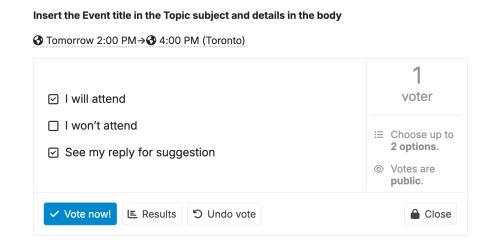
When you’re planning a meetup in real life or online, you can add a Poll to your topic that makes it simple for people to say yes or no, but also discuss.
Insert the Event title in the Topic subject and details in the body
You can use the date picker to set the start and end times.
Select insert date/time from the More dropdown
Image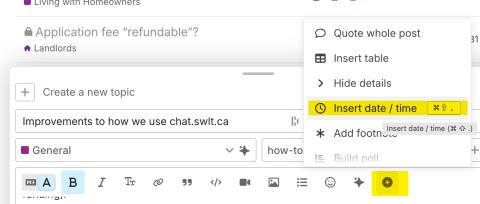 Image
Image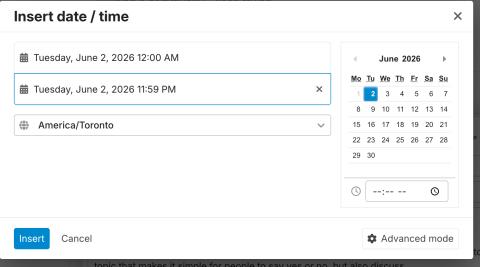
This will display the date(s) and time(s) you choose in the message.
Then choose Create poll from the More dropdown
Image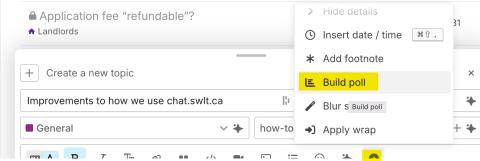
Enter the choices (either Single or Multiple choice allowed)
Image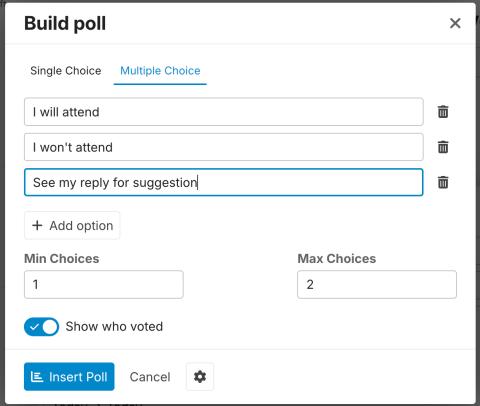
Single Choice only allows one choice per vote.
You can't go back and edit the More widgets (you can delete and redo them, but that will lose any votes).
Image